Every App Store Screenshot Size You Need in 2026
Apple requires store visuals at exact pixel dimensions — off by a single pixel and App Store Connect rejects the upload. Google Play is more flexible, accepting any resolution between 320 px and 3,840 px per side, but your choice of dimensions still determines how sharp your listing looks across thousands of Android devices. This reference covers every required size for both stores as of June 2026, sourced directly from Apple's App Store Connect documentation and Google Play Console Help.
I maintain these tables for Sonar's own ASO workflow and update them every time Apple or Google ships a new device class. The last change was Apple adding the iPhone Air to the 6.9-inch display class in early 2026 — its native resolution is 1260 x 2736 px (source: Apple iPhone Air Tech Specs), a new panel size that Apple groups alongside the 1320 x 2868 and 1290 x 2796 options already in that class (source: App Store Connect Screenshot Specifications).
iPhone Screenshot Sizes (iOS App Screenshots)
The primary iPhone display class in 2026 is 6.9 inches, which covers iPhone Air, iPhone 17 Pro Max, iPhone 16 Pro Max, and iPhone 16/15 Plus. Apple accepts three resolutions for this class: 1320 x 2868, 1290 x 2796, and 1260 x 2736 (portrait). Apple scales the uploaded size down automatically for smaller iPhones, so most developers only need to upload one iPhone set (source: Apple Developer Documentation).
Here is every accepted iPhone display class and its dimensions:
| Display class | Devices | Portrait (px) | Landscape (px) |
|---|---|---|---|
| 6.9" | iPhone Air, 17 Pro Max, 16 Pro Max, 16/15 Plus | 1320 x 2868, 1290 x 2796, or 1260 x 2736 | 2868 x 1320, 2796 x 1290, or 2736 x 1260 |
| 6.5" | iPhone 14 Plus, 13/12/11 Pro Max, XS Max | 1284 x 2778 | 2778 x 1284 |
| 6.3" | iPhone 17/17 Pro, 16/16 Pro, 15/15 Pro, 14 Pro | 1206 x 2622 | 2622 x 1206 |
| 6.1" | iPhone 17e/16e, 14, 13/12 Pro, X, XS | 1170 x 2532 | 2532 x 1170 |
| 5.5" | iPhone 8/7/6S Plus | 1242 x 2208 | 2208 x 1242 |
| 4.7" | iPhone SE (2nd/3rd gen), 8/7/6S | 750 x 1334 | 1334 x 750 |
Minimum requirement: Upload at least the 6.9-inch size. Apple auto-scales for smaller displays. If you want pixel-perfect control on a specific display class (especially 5.5-inch, where text can become illegible after scaling), upload that size separately (source: Apple Developer Documentation).
Limit: 1 to 10 images per localization. The first three appear in App Store search results, making them the highest-impact creative real estate in your entire listing. For more on making those first frames count, see our guide on screenshot caption optimization.
iPad Screenshot Sizes
iPad visuals are mandatory if your app runs on iPad — Apple will reject the submission without them (source: Apple Developer Documentation). The primary iPad size in 2026 is 2064 x 2752 pixels for the 13-inch iPad Pro (M4/M5).
| Display class | Devices | Portrait (px) | Landscape (px) |
|---|---|---|---|
| 13" | iPad Pro M5/M4, iPad Air M4/M3 | 2064 x 2752 | 2752 x 2064 |
| 12.9" | iPad Pro (1st–6th gen) | 2048 x 2732 | 2732 x 2048 |
| 11" | iPad Pro 11", iPad Air (4th–5th gen), iPad mini (6th/A17) | 1668 x 2388 | 2388 x 1668 |
| 10.9" | iPad (10th gen, A16) | 1640 x 2360 | 2360 x 1640 |
| 10.5" | iPad Air (3rd gen), iPad (7th–9th gen) | 1668 x 2224 | 2224 x 1668 |
Apple auto-scales the 13-inch images for smaller iPads, so uploading 2064 x 2752 alone covers most cases. The 12.9-inch dimension (2048 x 2732) is now legacy but still accepted for apps targeting older iPad Pro models.
Google Play Screenshot Sizes (App Screenshots Android)
Google Play does not require exact pixel dimensions like Apple. Instead, it enforces a range: each side must be between 320 px and 3,840 px, and the longest side cannot exceed twice the shortest side — which means the maximum aspect ratio is 2:1 (source: Google Play Console Help).
In practice, the standard for app screenshots Android is 1080 x 1920 pixels (portrait, 9:16 ratio). This is what I use for every Android listing I review, and it renders cleanly across virtually all phone screens.
| Device type | Recommended size (px) | Aspect ratio | Count |
|---|---|---|---|
| Phone | 1080 x 1920 (portrait) | 9:16 | 2–8 |
| 7" tablet | 1200 x 1920 | 10:16 | 1–8 |
| 10" tablet | 1600 x 2560 | 10:16 | 1–8 |
| Chromebook | 1920 x 1080 (landscape) | 16:9 | 1–8 |
| Wear OS | 384 x 384 | 1:1 | 1–8 |
| TV | 1920 x 1080 | 16:9 | 1–8 |
Feature graphic (required): Every Google Play listing also needs a 1024 x 500 px feature graphic, which appears at the top of your store page and in promotional placements (source: Google Play Console Help).
File limits: JPEG or 24-bit PNG (no alpha channel), maximum 8 MB per file. Apps aiming to be featured need at least 4 images at 1080 px or higher resolution in portrait (9:16) or landscape (16:9) format.
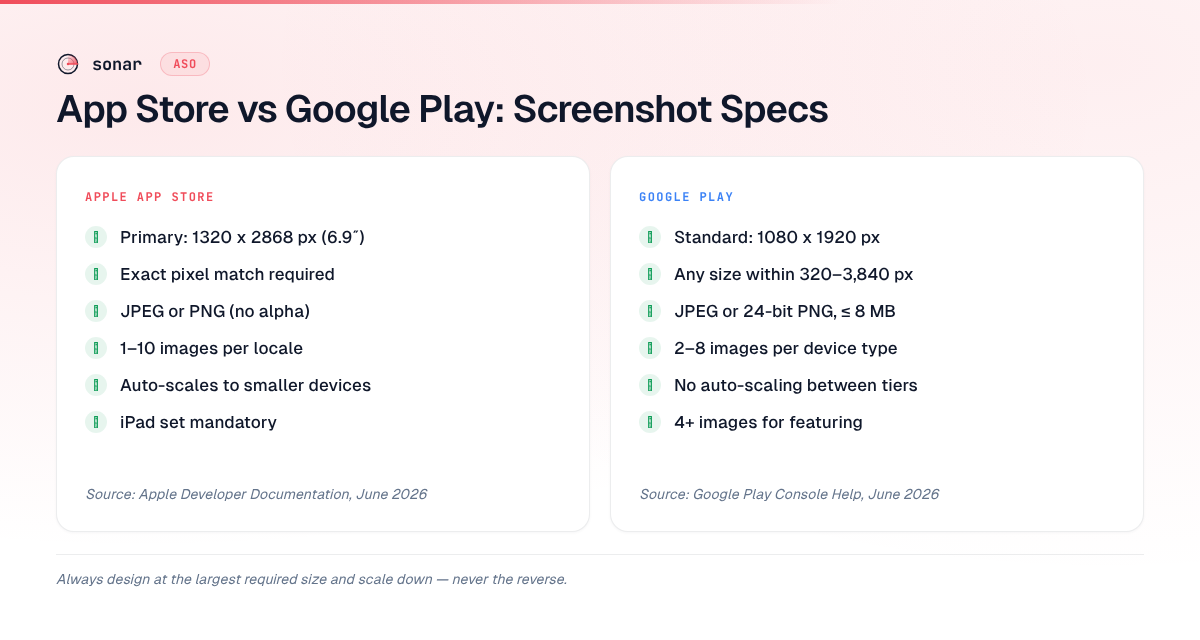
App Store vs. Google Play: Creative Specs Side by Side
The differences between iOS app screenshots and app screenshots Android go beyond pixel counts. Understanding how ASO differs between platforms helps you allocate creative resources more efficiently.
| Spec | Apple App Store | Google Play |
|---|---|---|
| Primary phone size | 1320 x 2868 px (or 1290 x 2796 / 1260 x 2736) | 1080 x 1920 px |
| Pixel tolerance | Exact match required | Any size within 320–3,840 px range |
| Accepted formats | JPEG, PNG | JPEG, 24-bit PNG (no alpha) |
| Max file size | Not specified (practical ~10 MB) | 8 MB per image |
| Images per listing | 1–10 | 2–8 |
| Auto-scaling | Yes (larger to smaller devices) | No (single upload per device tier) |
| Mandatory for tablets | Yes, if app runs on iPad | Not mandatory but strongly recommended |
| Orientation | Must match app's primary UI orientation | Portrait or landscape accepted |
One of the most striking differences: Apple lets you upload up to 10 listing images per localization, while Google Play caps it at 8. That means iOS developers get 25% more visual real estate per locale to tell their app's story. On the other hand, Google Play's flexible sizing means less time spent on asset production — one set of 1080 x 1920 images covers all phones.
Why Screenshot Dimensions Affect Conversion
App store screenshots dimensions are not just a compliance checkbox — they directly influence how users perceive your app. A visual uploaded at 750 x 1334 px (the 4.7-inch iPhone SE size) and displayed on an iPhone 16 Pro Max screen will look noticeably blurry after Apple scales it up. I have seen this mistake tank conversion rates on listings that were otherwise well-optimized.
Among the top budget planner apps tracked by Sonar, "Budget Planner App - Fleur" scores 75/100 on Sonar's ASO audit, earning full marks on title length and keyword placement — but its conversion rate ultimately depends on how well its store visuals communicate value at the right dimensions. (source: Sonar /api/v1/apps/aso-score, queried 2026-06-13)
This pattern repeats across categories. In competitive search results, your creative assets are fighting for visual attention against dozens of other apps. The keyword "budget planner" pulls 185 results on iOS (popularity 42, difficulty 65) versus 30 results on Android (popularity 43, difficulty 68) — a 6x difference in search-result density that directly affects how much visual real estate each app's listing images claim in results. (source: Sonar /api/v1/keywords/search, queried 2026-06-13)
When there are 185 apps in the results carousel, each listing's visuals get squeezed. Crisp, high-resolution images at the correct app store screenshots dimensions stand out. Blurry, mis-sized ones get scrolled past. For a deeper look at how store visuals drive installs, see our breakdown of app store conversion rate benchmarks.
Apple Watch, Apple TV, Mac, and Vision Pro Sizes
Beyond iPhone and iPad, Apple requires creative assets for every platform your app supports. Skipping any of these results in a rejected submission (source: Apple Developer Documentation). I learned this the hard way after a watchOS submission bounced because I had uploaded Series 10 dimensions for an Ultra-only complication — Apple treats each watch model as a separate required set.
Apple Watch
| Model | Size (px) |
|---|---|
| Ultra 3 | 422 x 514 |
| Ultra 2 / Ultra | 410 x 502 |
| Series 11 / Series 10 | 416 x 496 |
| Series 9 / 8 / 7 | 396 x 484 |
| Series 6 / 5 / 4, SE | 368 x 448 |
Apple Watch visuals must use the same size consistently across all localizations — you cannot mix 396 x 484 in English and 416 x 496 in Spanish within the same submission.
Apple TV
Two accepted sizes: 1920 x 1080 (1080p) or 3840 x 2160 (4K). Use 4K if your tvOS app supports it — the sharpness difference is visible on modern Apple TV hardware.
Mac
Mac listing images use a 16:10 aspect ratio. Accepted sizes are 1280 x 800, 1440 x 900, 2560 x 1600, and 2880 x 1800 (source: Apple Developer Documentation).
Apple Vision Pro
One size: 3840 x 2160 (4K). Required for any visionOS app.
How Image Count Affects Search Visibility
The number of creative assets you upload is not just about filling slots — it influences how much of the search results page your app occupies. On the App Store, the first three images appear inline in search results. On Google Play, the first three to four appear, depending on device width.
Sonar's keyword index puts "tip calculator" at iOS difficulty 40 and popularity 38, with 139 apps competing for the keyword. On Android, the same keyword shows difficulty 16 and popularity 44 — meaning indie apps with well-optimized visuals face less visual competition in Android search results. (source: Sonar /api/v1/keywords/search, queried 2026-06-13)
This has a practical implication for your creative strategy: in a low-competition Android search result, your first three listing images dominate more of the user's viewport. In a high-competition iOS result with 139 apps, those same three frames are smaller and more easily lost. In both cases, using the correct app store screenshot sizes ensures your creative assets render at maximum clarity regardless of where they appear.
For Android-specific ASO strategies — including how to run Google Play listing experiments with different image sets — the lower competition on Play Store makes it an ideal platform for A/B testing your creative assets.
Common Mistakes and How to Avoid Them
After auditing hundreds of app listings through Sonar, I see the same creative-asset errors repeatedly. Here are the five most common, ranked by how often they cause rejected submissions or lost conversions:
- Wrong pixel dimensions on iOS. Apple requires exact dimensions. Uploading 1290 x 2796 when App Store Connect expects 1320 x 2868 results in a hard rejection. Always check your export settings against the table above.
- Alpha channel in PNG files. Both Apple and Google reject PNGs with alpha transparency. Export as 24-bit PNG (RGB, no alpha) or JPEG. This is the second-most common rejection reason I encounter.
- Scaling up from smaller sizes. Uploading 750 x 1334 images and relying on Apple's auto-scaling to display them on 6.9-inch devices creates visible blur. Always design at the largest required size and scale down.
- Ignoring the 5.5-inch display class. The 1242 x 2208 dimension (iPhone 8 Plus and older) still matters — millions of these devices are in active use. Text-heavy captions designed for 1320 x 2868 may become unreadable after scaling. Upload a dedicated 5.5-inch set with larger text if your audience skews toward older hardware.
- Fewer than 4 images on Google Play. While the minimum is 2, Google requires at least 4 at 1080 px+ to be eligible for featuring. Apps that do not meet this threshold miss out on editorial placements entirely (source: Google Play Console Help).
Key Takeaways
- iPhone primary size: 1320 x 2868 px (6.9-inch class). The 6.9-inch class also accepts 1290 x 2796 and 1260 x 2736 for devices like iPhone Air.
- iPad primary size: 2064 x 2752 px (13-inch class). Auto-scales to smaller iPads.
- Google Play standard: 1080 x 1920 px for phones. Any resolution between 320–3,840 px per side is accepted.
- Format: JPEG or PNG (no alpha channel on either store). Google Play caps files at 8 MB.
- Count: Apple allows 1–10 per locale; Google Play allows 2–8. At least 4 at 1080 px+ on Google Play for featuring eligibility.
- Always design at the largest required size and scale down — never the reverse.
FAQ
What is the best screenshot size for the App Store in 2026?
The recommended iPhone image size in 2026 is 1320 x 2868 pixels (portrait) for the 6.9-inch display class. This covers iPhone 17 Pro Max, iPhone 16 Pro Max, and iPhone 16/15 Plus. Apple's 6.9-inch class also accepts 1290 x 2796 and 1260 x 2736 — the latter matching iPhone Air's native panel. Apple auto-scales to smaller iPhones, so uploading one 6.9-inch set is sufficient for most apps. (Source: Apple Developer Documentation)
What are the Google Play screenshot size requirements?
Google Play requires images between 320 px and 3,840 px per side, with a maximum 2:1 aspect ratio. The industry standard for phones is 1080 x 1920 pixels in portrait (9:16). You must upload a minimum of 2 and a maximum of 8 per device type. Files must be JPEG or 24-bit PNG, under 8 MB each. (Source: Google Play Console Help)
Do I need separate screenshots for iPad?
Yes. Apple requires iPad visuals if your app supports iPad — submissions without them are rejected. The primary iPad size is 2064 x 2752 pixels for the 13-inch display class. Apple auto-scales this to smaller iPads, but you can upload dedicated sizes for each display class if you want pixel-perfect rendering. (Source: Apple Developer Documentation)
How many screenshots should I upload for maximum conversion?
Apple allows up to 10 per localization; Google Play allows up to 8. For iOS, the first three appear in search results — these are the most critical for conversion. On Google Play, uploading at least 4 at 1080 px+ is required for featuring eligibility (source: Google Play Console Help). Use every available slot to communicate distinct features rather than repeating the same value proposition across frames.
Can I use the same screenshots for both App Store and Google Play?
Not without resizing. Apple's primary iPhone size is 1320 x 2868 px (roughly 1:2.17 ratio), while Google Play's standard is 1080 x 1920 px (9:16 or 1:1.78 ratio). The aspect ratios differ, so directly reusing assets will result in either cropping or black bars. Design your source files at high resolution and export separate sets for each store.
Need to check how your listing images perform against the competition? Try Sonar free — it scores your entire App Store listing, including creative assets, and shows you exactly where to improve.